

Huawei EV Chargers
Two Huawei product families are supported: the SCharger (AC wallbox) and the FusionCharge (commercial DC fast charger). Both communicate via Modbus TCP.
Supported Devices
| Device Type | Manual | Modbus TCP (Ethernet) | RS485 | Curtailment |
|---|---|---|---|---|
| SCharger-7KS-S0 | Manual | ✅ | ❌ | ✅ |
| SCharger-22KT-S0 | ||||
| FusionCharge EV-charger | Manual |
SCharger
The SCharger is an AC wallbox for residential and light commercial use.
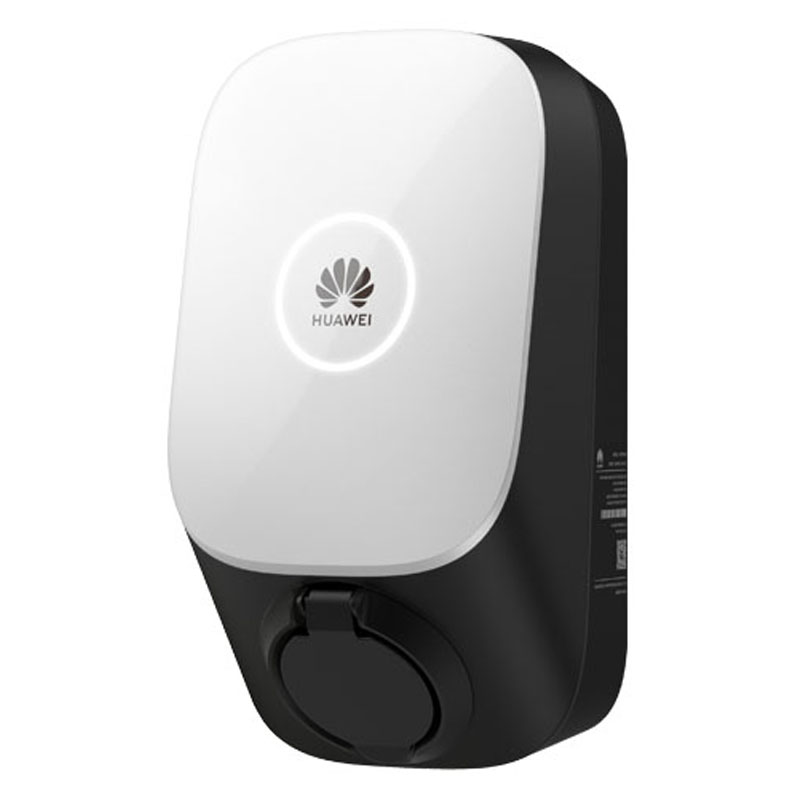
Wiring
Power Wiring
- SCharger-7KS-S0 (1-Phase): L1, N, PE.
- SCharger-22KT-S0 (3-Phase): L1, L2, L3, N, PE.
Network Connection (FE/Ethernet)
For the most stable connection with the Controller, use a hardwired Ethernet (FE) connection.
- Open the charger cover.
- Route the network cable through the left cable hole at the bottom of the rear cover.
- Connect the network cable to the FE port on the rear side of the internal unit.
- Connect the other end to the same router/network switch as the Controller.
Note
While the charger supports Wi-Fi, a wired Ethernet connection is strongly recommended for reliable control by the Controller.
Configuration
1. Initial Setup (via Huawei App)
Use the FusionSolar App (Installer account) to configure the network and Modbus settings.
- Log in to the FusionSolar app as an Installer.
- Tap Setup Wizard > Scan the QR code on the side of the charger.
- Connect to the charger's internal WLAN hotspot (password is on the label).
2. Enable Third-Party Control (Modbus TCP)
By default, the charger does not accept commands from external controllers. You must enable this:
- In the FusionSolar app (connected to the device hotspot), go to Settings.
- Navigate to Communication configuration > Dongle parameter settings.
- Find Modbus TCP.
- Set to Enable (unrestricted) or Enable.
- Ensure the port is set to 502.
Warning
If Modbus TCP is not enabled here, the Controller cannot detect or control the charger.
3. Static IP Address
To ensure the Controller never loses connection, assign a static IP:
- Go to Quick Settings > Communication networking.
- Select FE (Fast Ethernet) if wired, or WLAN if wireless.
- Disable DHCP.
- Enter a static IP Address, Subnet Mask, and Gateway matching the site network.
4. Eniris Controller Configuration
| Setting | Value |
|---|---|
| IP Address | The static IP you assigned in step 3 (e.g., 192.168.1.50) |
| Port | 502 |
| Slave ID | 1 (default) |
FusionCharge
The FusionCharge is a commercial DC fast charger with multiple physical connector slots.
Configuration
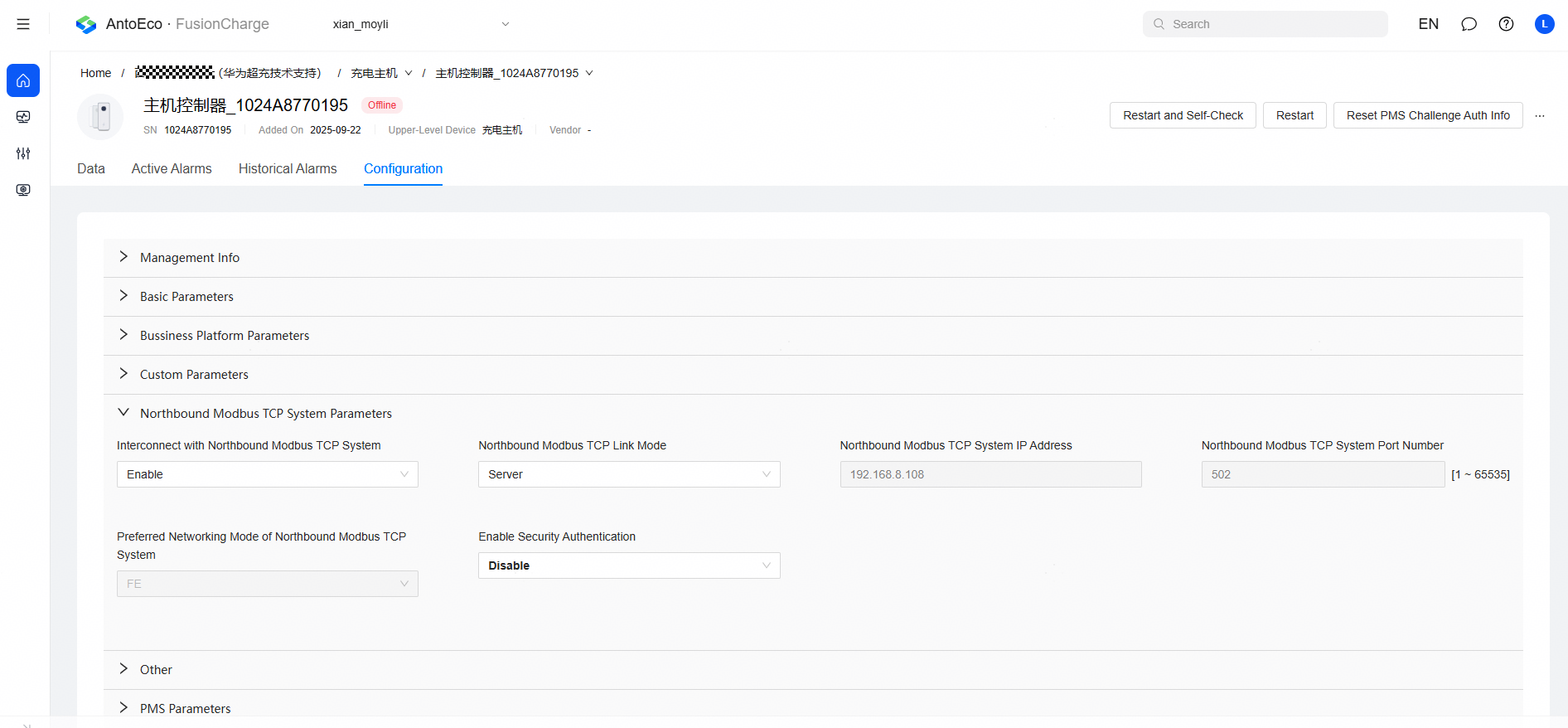
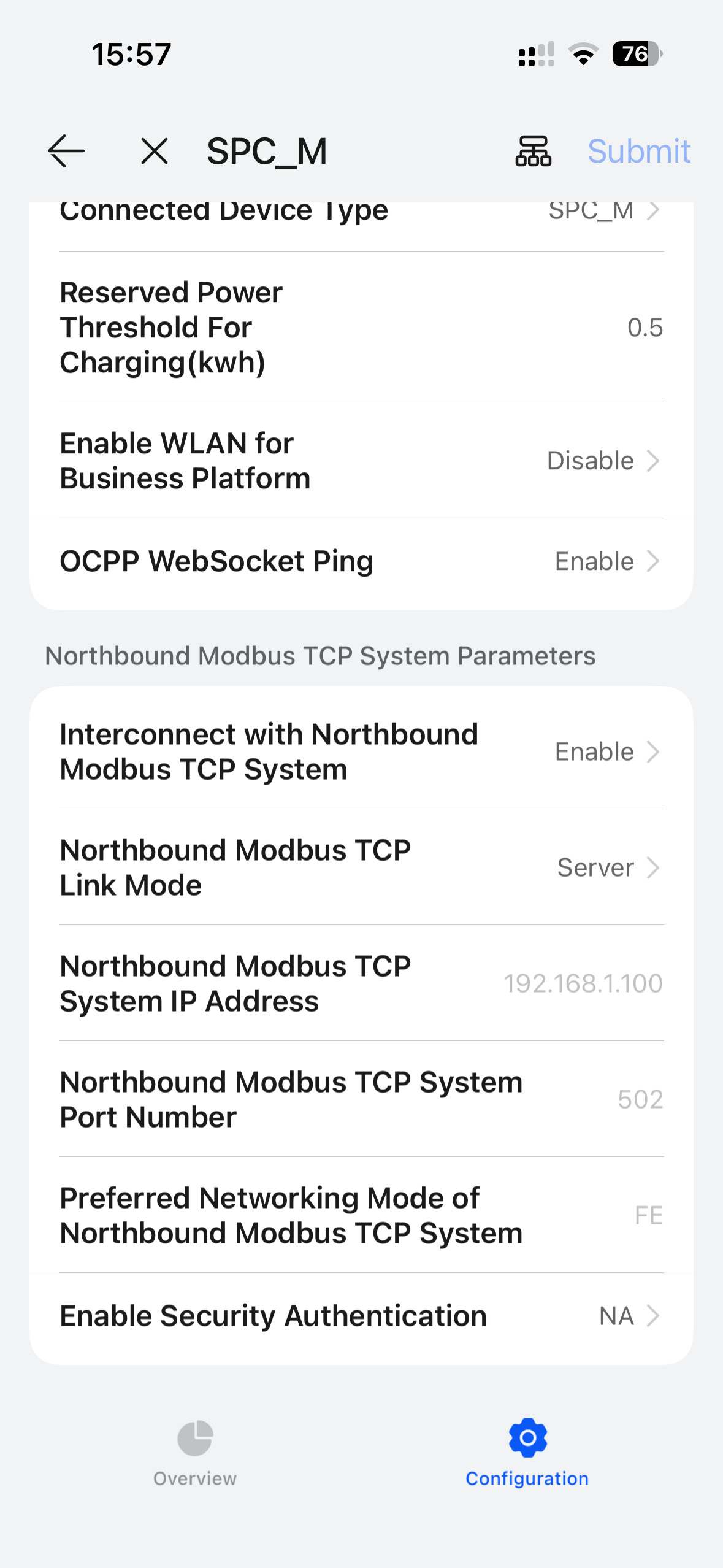
Enable Modbus TCP
Access the antohill web interface or use antoeci cloud.
- Navigate to Settings > Communication configuration.
- Find Modbus TCP and set it to Enable (unrestricted) or Enable.
- Confirm the port is set to 502.
Warning
If Modbus TCP is not enabled, the Controller cannot detect or control the charger.
Technical Notes
Multi-Connector Aggregation
The FusionCharge has multiple physical connector slots, but accepts a single global power setpoint. The Controller therefore treats all connectors as one virtual connector for control, while still reading each one individually for monitoring:
- Power is summed across all active connectors.
- Status follows a priority hierarchy the most significant active state is reported.
- State of Charge (SOC) is averaged over all connected vehicles.