

Neovolt Cloud API
Supported Devices
| Device Type | Cloud API |
|---|---|
| All | ✅ |
Adding a Device
Generate a site
- Select 'Start import wizard' under the 'Add sites' header.
- Select Neovolt.
- Fill in your Neovolt API public and private keys.
- Fill in the serial number of the inverter. You can leave this empty to generate a site for all systems linked to your Neovolt APICloud account.
The site(s) should now be generated.
Warning
Warning
Each selected site will regenerate the site if it is already present! This will reset all settings of the site and the devices in it to the default settings.
Changing site and device settings
- Enter the generated site.

- Under site settings, set your desired strategy for storage devices (e.g. Cost optimisation).

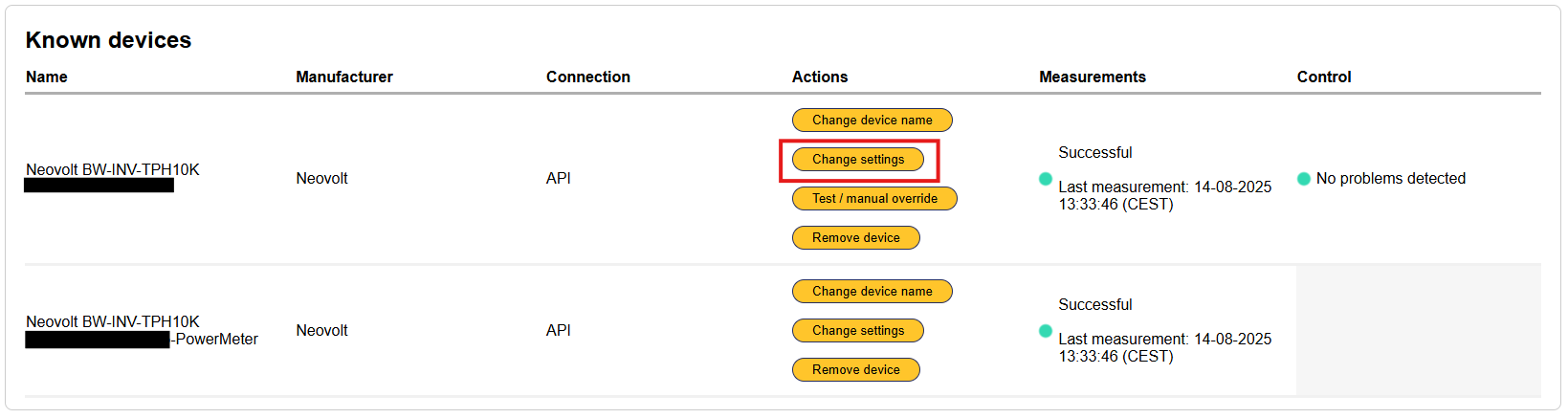
- Under the device settings of the inverter, configure the settings as preferred.

Last updated December 10, 2025Edit this page