Network Troubleshooting
How to get a connection to your controller after a static IP was set.
Situation: You changed the network configuration on the controller and can’t connect to it or detect it in the network.
Goal: Reconnect the controller to the network.
Physical topology:
Connect a CAT5 or CAT6 cable with RJ45 connectors between the Network Interface Card (NIC) of the Controller and the laptop / computer.
On both ends the LEDS be on. Depending on your NIC, you have 1 or 2 LEDs.
Configuration:
Change the network configuration of your ethernet port on your laptop / computer to the network settings that corresponds with the current network configuration of the controller.
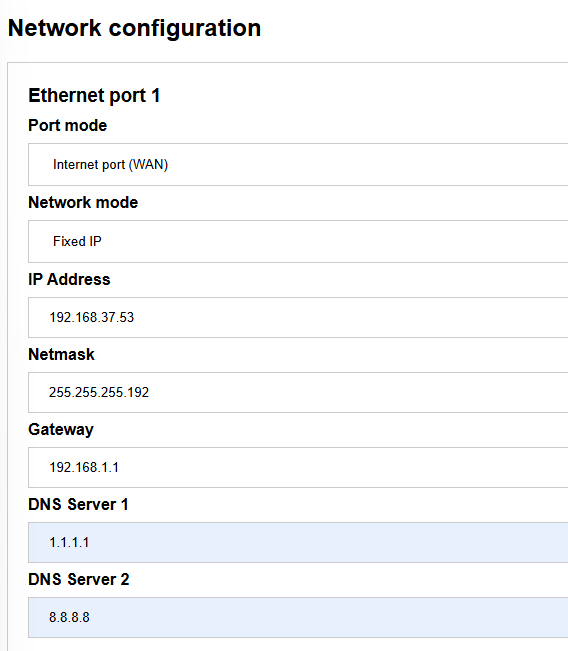
For example the network configuration on the controller has been set to
IP 192.168.37.53
Subnet Mask 255.255.192.0
Gateway 192.168.37.1
With this information, you may set the network configuration on your computer to e.g.:
IP 192.168.37.20
Subnet mask 255.255.192.0
The Gateway may be left blank, as their’s no gateway in this topology of the direct connection.
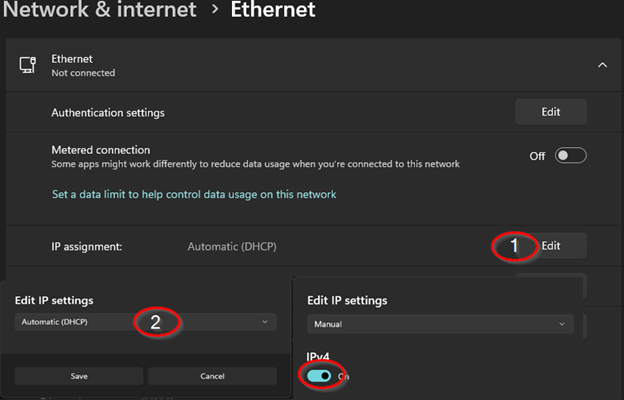
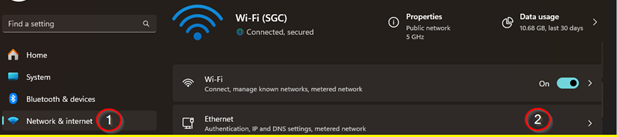
You may change these settings from the Network Settings on your devices. For example in Windows 11 this flow may be used:
- Open the settings and o to Network & internet
- Click on “Edit”, change the IP address setting to Manuel and turn on the IPv4 setting.